

Create an API Key
An API key identifies your integration and controls which endpoints it can call. You create keys in the Crewsum app.
You must be signed in as an Administrator or Tenant Admin to manage API keys.
Generate a key
Section titled “Generate a key”-
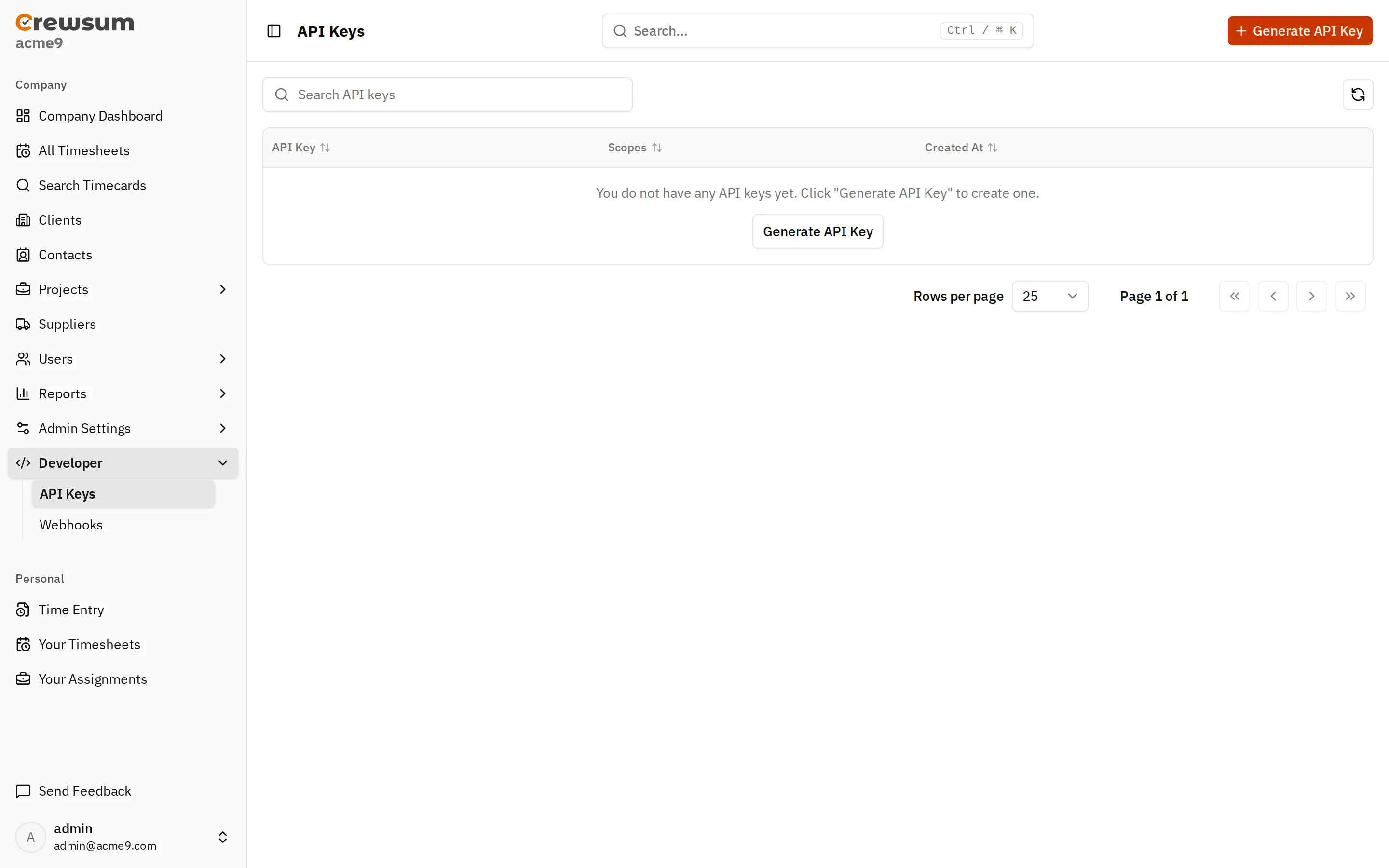
Sign in to the Crewsum app at app.crewsum.com. In the sidebar, select Developer > API Keys.
-
Select Generate API Key. The New API Key panel opens.
-
In Label, enter a name that tells you what the key is for, such as
Operations reporting. The label is optional, but it helps you find the key later. -
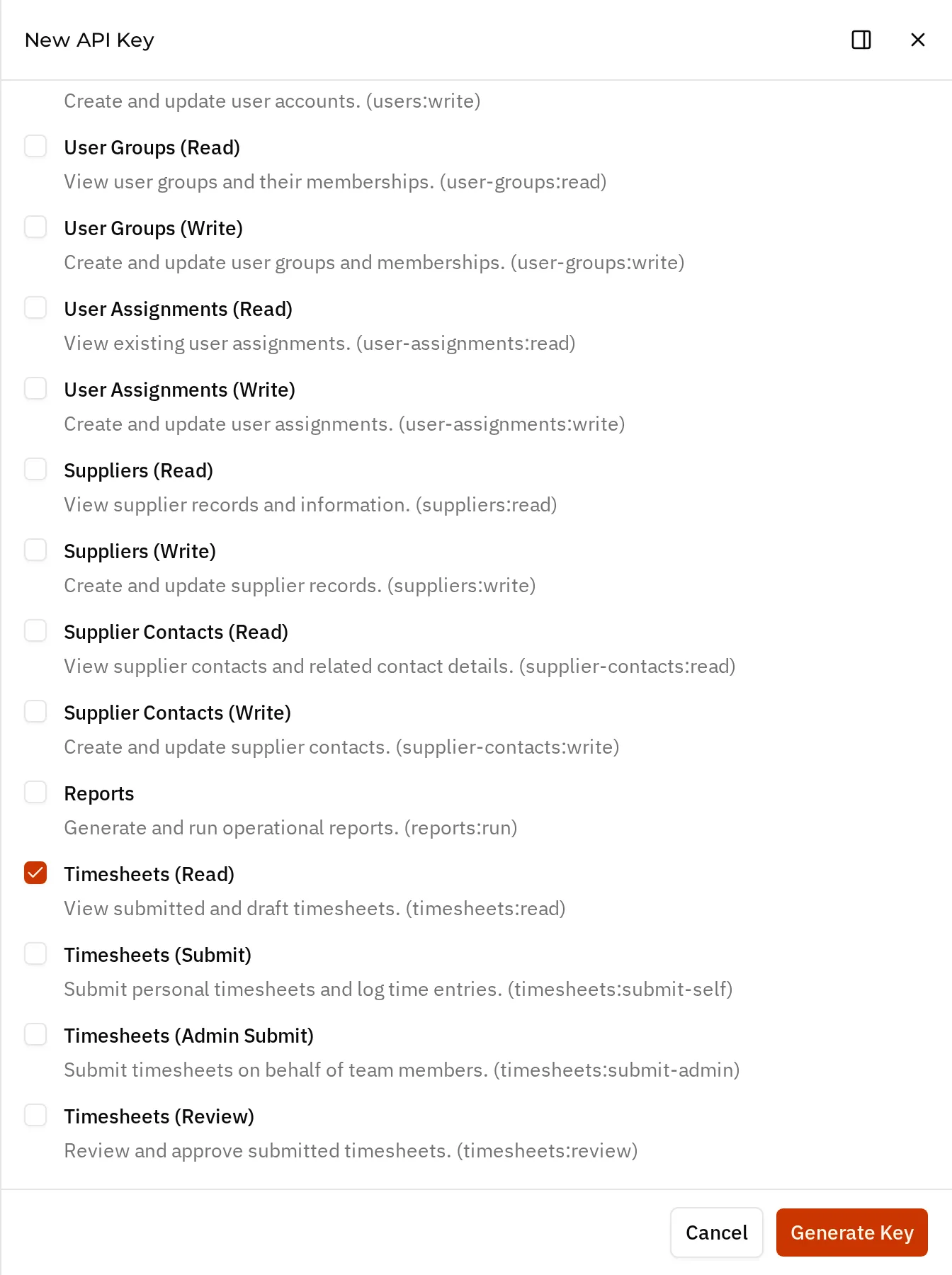
Under Scopes, select each scope that your integration needs. Each scope shows its name, a description, and its scope value, such as
clients:read. You must select at least one scope.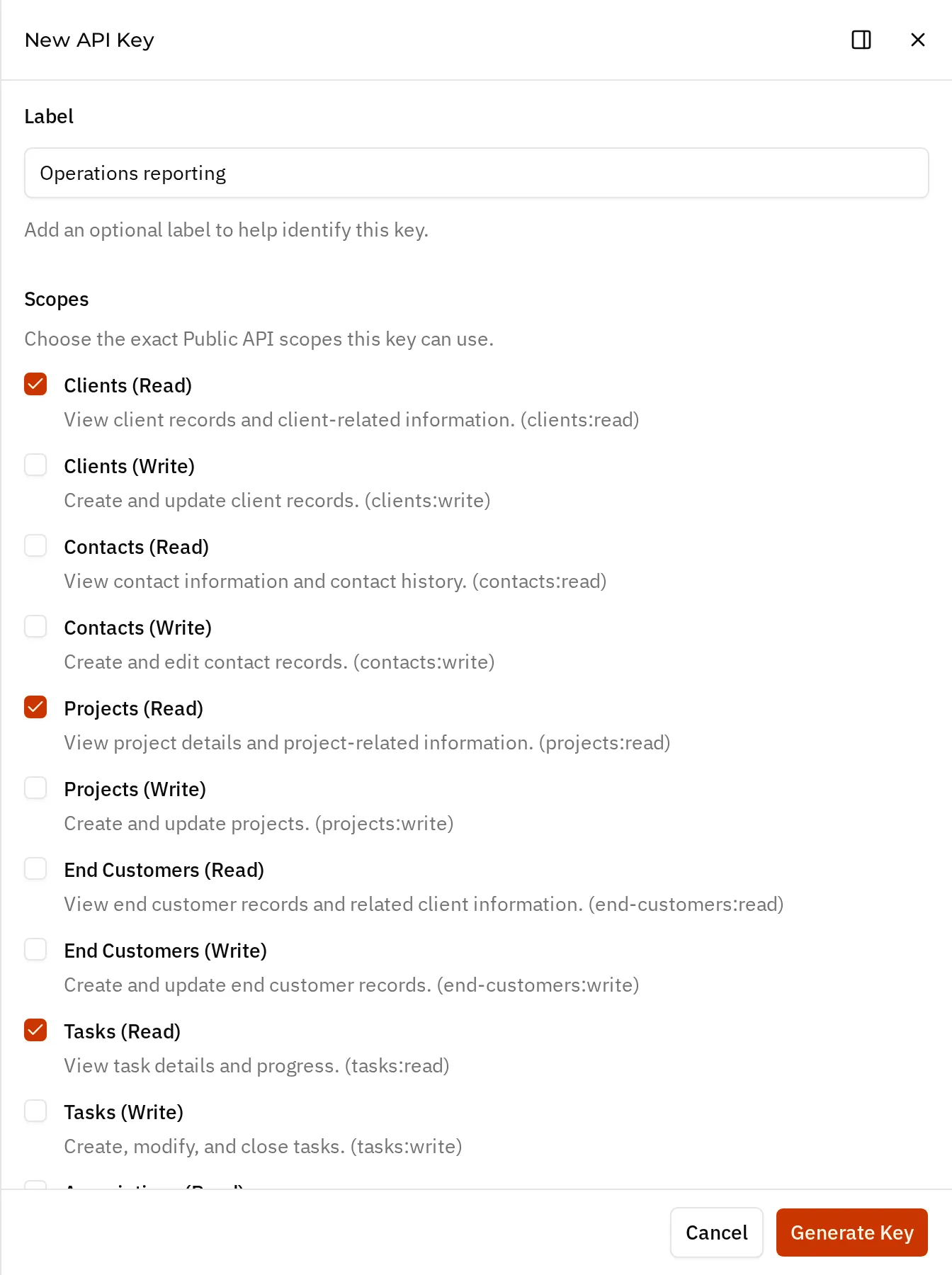
See Choose scopes below.
-
Scroll to the bottom of the panel and select Generate Key.
-
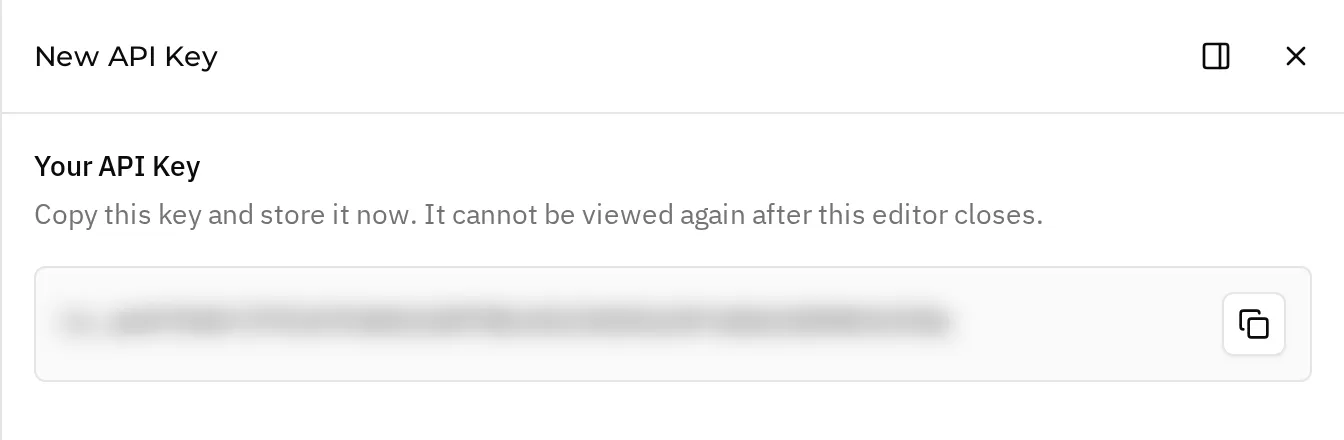
The panel now shows Your API Key. Select the copy button next to the key, and store the key in a secure place, such as a secrets manager.
-
Select Close. The new key appears in the list. The list shows the start of each key, its label, its scopes, and when it was created.
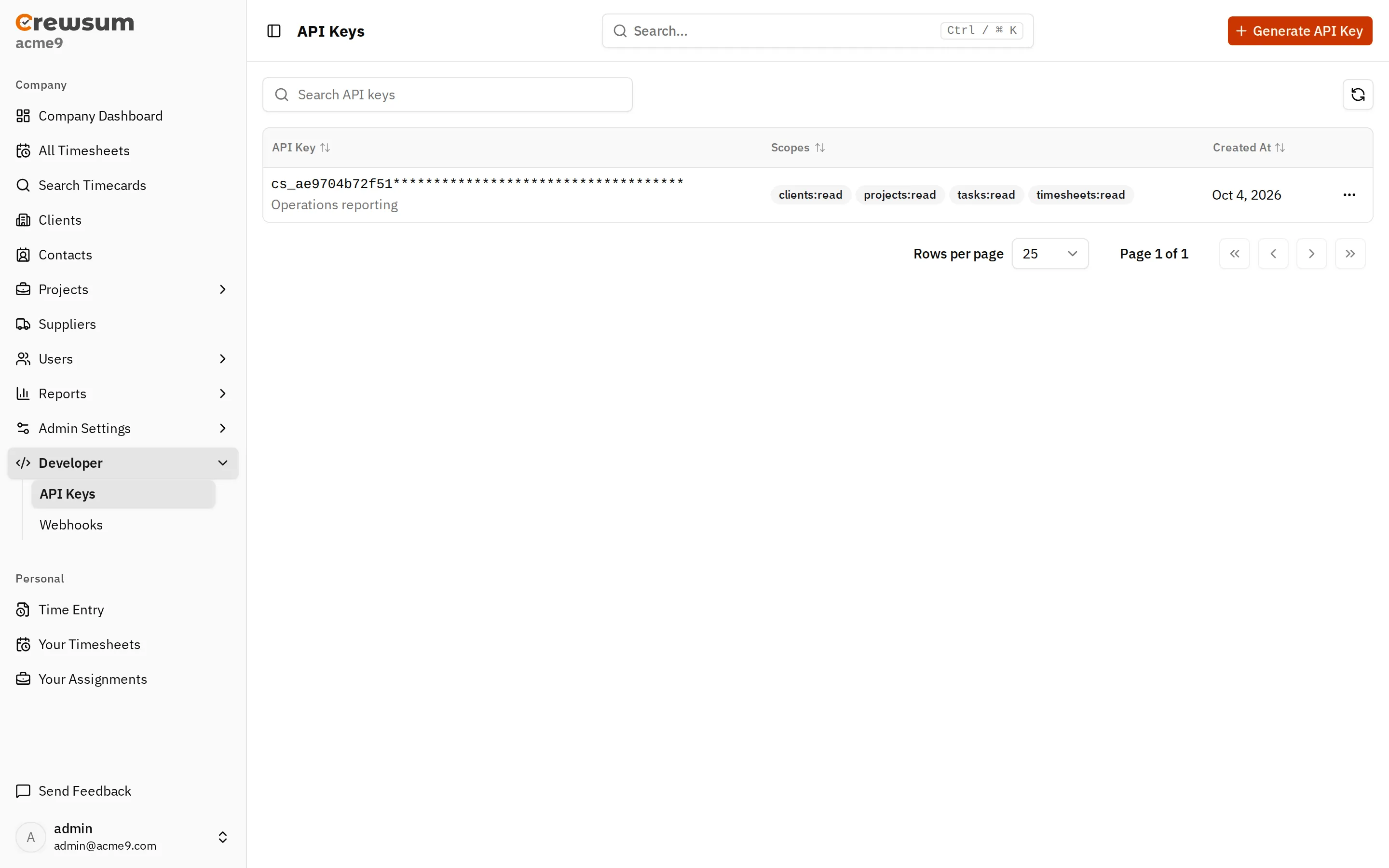
API keys start with cs_. Send the full key in the x-api-key header of each request. See Authentication.
Choose scopes
Section titled “Choose scopes”Each endpoint requires exactly one scope, and a key can call an endpoint only if it has that scope. Scopes are matched exactly:
clients:writedoes not includeclients:read. To list and update clients, select both.- There are no wildcard or parent scopes.
The endpoint pages in the API Reference show the scope that each endpoint requires. The Scopes page lists every scope.
Select only the scopes that your integration uses. For example, a payroll export that reads approved timesheets needs only timesheets:read.
If a key does not have the required scope, the request fails. See Errors.
Change or revoke a key
Section titled “Change or revoke a key”You cannot change the scopes or the label of an existing key. To change the scopes:
- Generate a new key with the scopes you need.
- Update your integration to use the new key.
- Delete the old key.
To delete a key, open the … menu in its row and select Delete key. In the Delete API Key dialog, select Delete Key. The key stops working immediately.
Keep your key safe
Section titled “Keep your key safe”- Treat the key like a password. Anyone with the key can call the API with its scopes.
- Do not put the key in front-end code, mobile apps, or source control. Call the API only from your server.
- Use a separate key for each integration, so that you can revoke one without affecting the others.
- If a key is exposed, delete it and generate a new one.