

Timesheets
A timesheet holds one user’s time for one workweek. Each project/task pair on the timesheet is a timecard.
Workweek
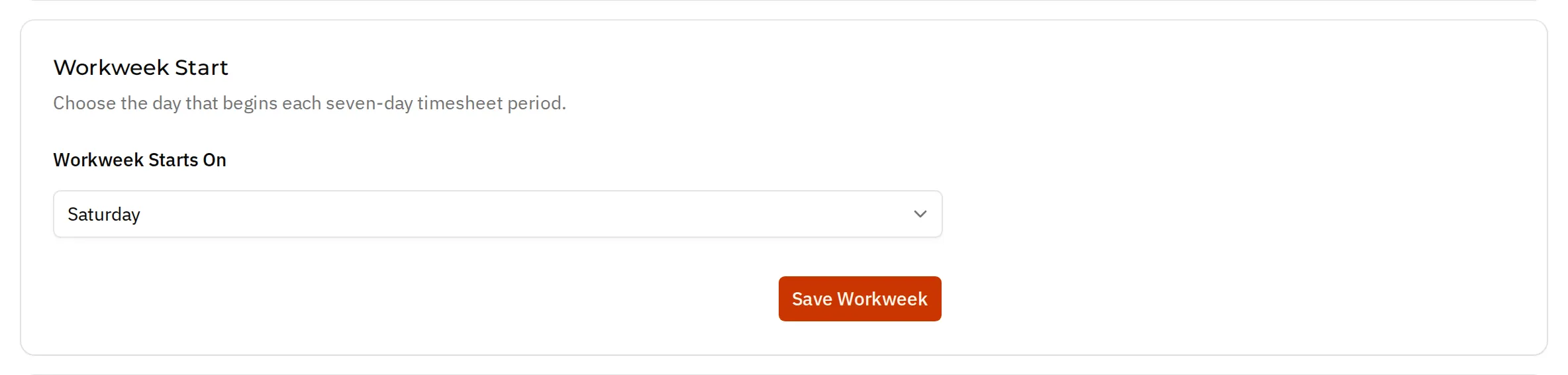
Section titled “Workweek”A timesheet covers seven consecutive days that start on your account’s workweek start day. The day is chosen at sign-up, and an administrator can change it in Admin Settings > Account Settings > Workweek Start (field Workweek Starts On, button Save Workweek). The default is Saturday, so by default a week runs Saturday through Friday.
periodStart is the first date on the timesheet and periodEnd is the last date.
Timesheet IDs
Section titled “Timesheet IDs”Timesheet IDs use this format:
tenantId#externalUserId#YYYYMMDD_YYYYMMDD
The two dates are the period start and end. Each user has at most one timesheet per period.
Key Fields
Section titled “Key Fields”periodStartandperiodEndsubmittedAt: empty until the timesheet is submittedresubmissionAllowed: whether the user can submit the timesheet againsupplierId: the user’s supplier, copied onto the timesheet when it is saved or submitted
Entering Time
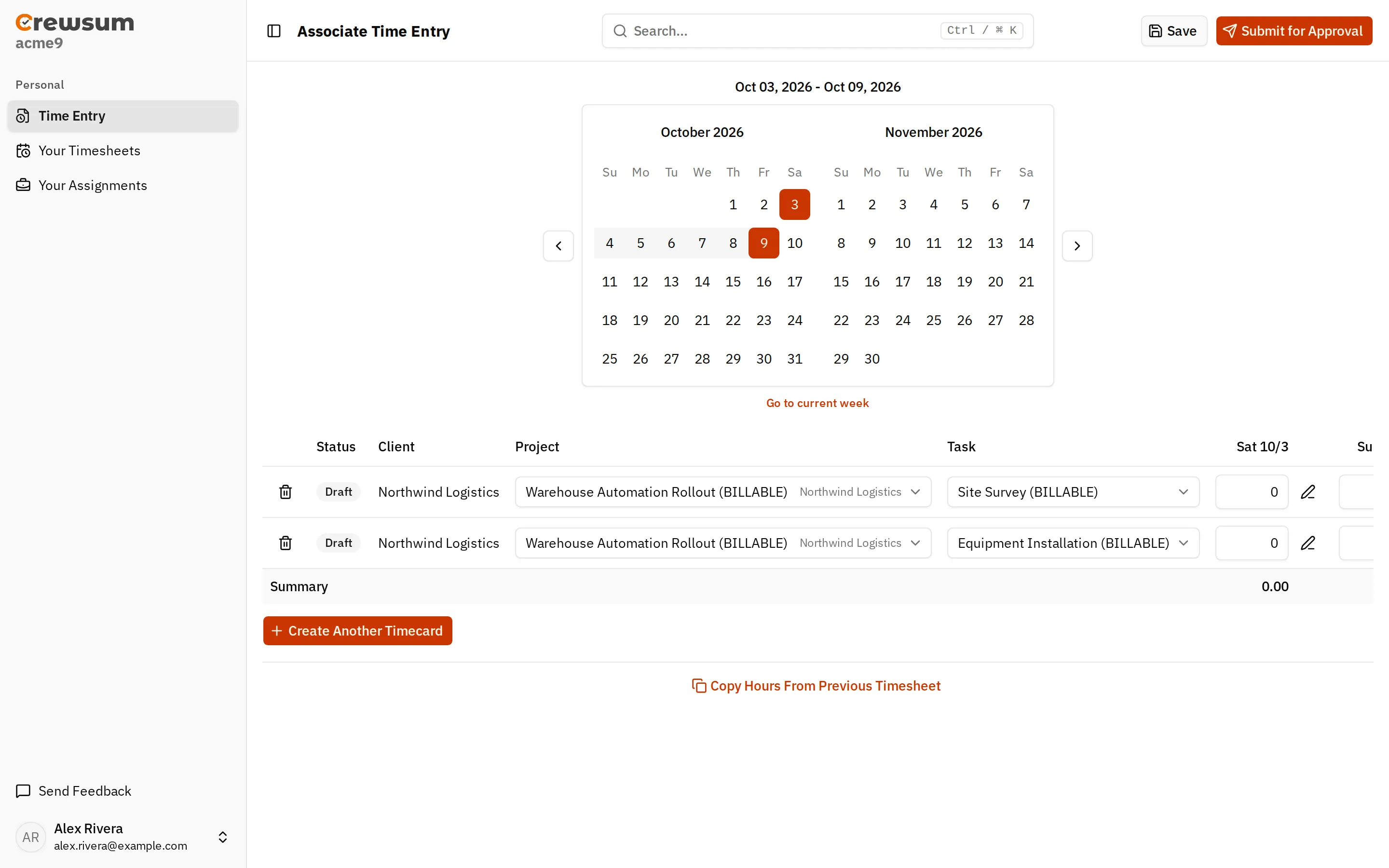
Section titled “Entering Time”Associates enter their own time on the Time Entry page (page title Associate Time Entry).
- Choose the week in the calendar. Go to current week returns to the current workweek.
- Add a row for each project/task pair with Generate Timecard or Create Another Timecard, or use Copy Hours From Previous Timesheet.
- Enter hours and a work description for each day.
- Select Save to keep a draft, or Submit for Approval to send the timesheet for review.
Users can only pick projects and tasks they are assigned to. Days outside a user’s Employment Dates cannot be edited.
Associates see their history under Your Timesheets and their projects and tasks under Your Assignments.
Saving
Section titled “Saving”Saving keeps the timesheet as a draft. It does not send anything for review.
- The first save creates the timesheet with an empty
submittedAtand createsdrafttimecards. - Later saves add new project/task pairs, remove pairs that were dropped, and update hours and descriptions.
Saving emits the timesheet.saved webhook.
Submitting
Section titled “Submitting”Submitting sends the timesheet for review:
- Crewsum adds, removes, and updates timecards to match the submission.
submittedAtis set andresubmissionAllowedis reset tofalse.- Every timecard on the timesheet is set to the submission status. For an associate submission this is
pending. Timecards that were approved earlier also return topendingand must be reviewed again. - Project contacts, the user, the internal copy email address, and the user’s supplier contacts receive emails. Contacts with Copy With Link receive an approval link. See Reviewing Time.
Self-submission emits the timesheet.submitted webhook. Submissions made by an administrator on behalf of a user do not emit a webhook.
Submission Rules
Section titled “Submission Rules”- The total hours on a single date cannot exceed 24.
- If any timecard has hours, every timecard must have hours. Delete empty timecards before you submit.
- Administrators cannot submit time to a project that is marked Completed.
Submitting Time for a User
Section titled “Submitting Time for a User”Administrators submit time on behalf of a user from All Timesheets > Submit Time for a User. The Submit Timesheet menu has two options:
- Submit for Approval creates
pendingtimecards and sends approval emails. - Submit as Approved creates
approvedtimecards and sends no emails.
Resubmission
Section titled “Resubmission”Pending and approved timecards are locked in time entry. A user can submit an already submitted timesheet again only when either:
- at least one timecard on the timesheet is
rejected, or - an administrator selects Allow Resubmission on the timesheet. This sets
resubmissionAllowedtotrue.
Managing Timesheets
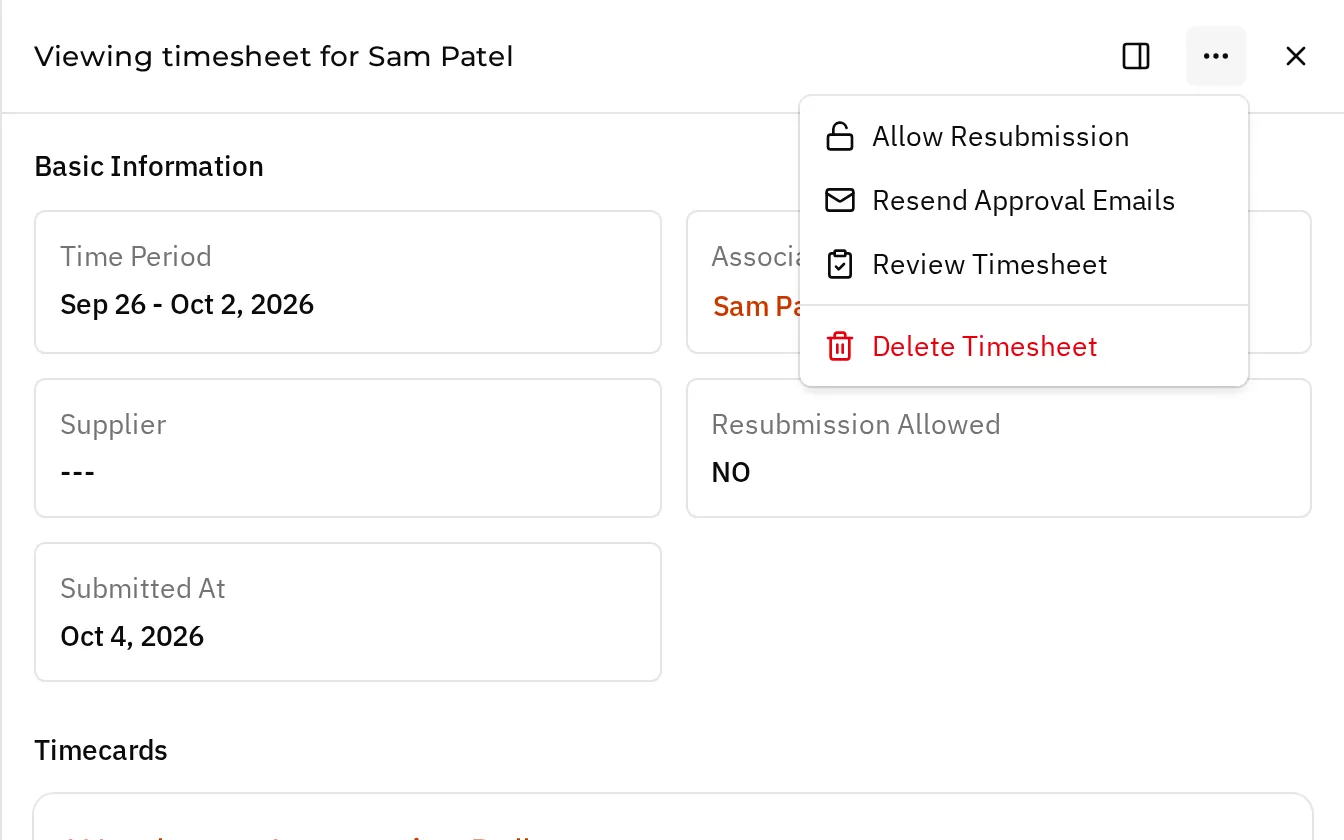
Section titled “Managing Timesheets”Administrators see every timesheet under All Timesheets and can search individual timecards under Search Timecards. Open a timesheet and use its actions menu to:
- Allow Resubmission
- Resend Approval Emails (shown while timecards are pending)
- Review Timesheet (shown while timecards are pending)
- Delete Timesheet
Deleting a timesheet permanently removes it and its timecards. It emits the timesheet.deleted webhook.
Related
Section titled “Related”- Concepts: Timecards, Reviewing Time, Assignments
- API: Timesheets endpoints, including Submit Self Timesheet and Submit Admin Timesheet
- Webhook events:
timesheet.saved,timesheet.submitted,timesheet.deleted