

Reviewing Time
Submitted time is reviewed one timecard at a time. For each day on a timecard, the reviewer chooses Approve or Reject. A rejected day needs a reason, and any rejected day makes the whole timecard rejected.
Review Paths
Section titled “Review Paths”| Path | Who reviews | Where | Review emails | Webhook |
|---|---|---|---|---|
| Approval link | External or internal contacts with Copy With Link | Link in the submission email | Yes | Yes |
| Admin review | Administrators | All Timesheets > Review Timesheet | Optional | No |
| Internal contact review | Users linked to an internal contact | Review Timesheets | No | No |
| API review | Your integration | Review Timesheet endpoint | Optional | Yes |
The Webhook column shows whether the path emits timecards.reviewed. Reviewing a timecard through any path closes it in outstanding approval links, so a contact cannot review the same timecard twice.
Who Receives Submission Emails
Section titled “Who Receives Submission Emails”When a timesheet is submitted for approval, Crewsum emails:
- each project contact whose association is Copy With Link. This email includes an approval link.
- each project contact whose association is Copy Only. This is an informational copy.
- the user who submitted the time
- the account’s Internal Copy Email address, when it is turned on in Admin Settings > Account Settings
- the user’s supplier contacts, as informational copies
Contacts whose association is None receive nothing.
Approval Link
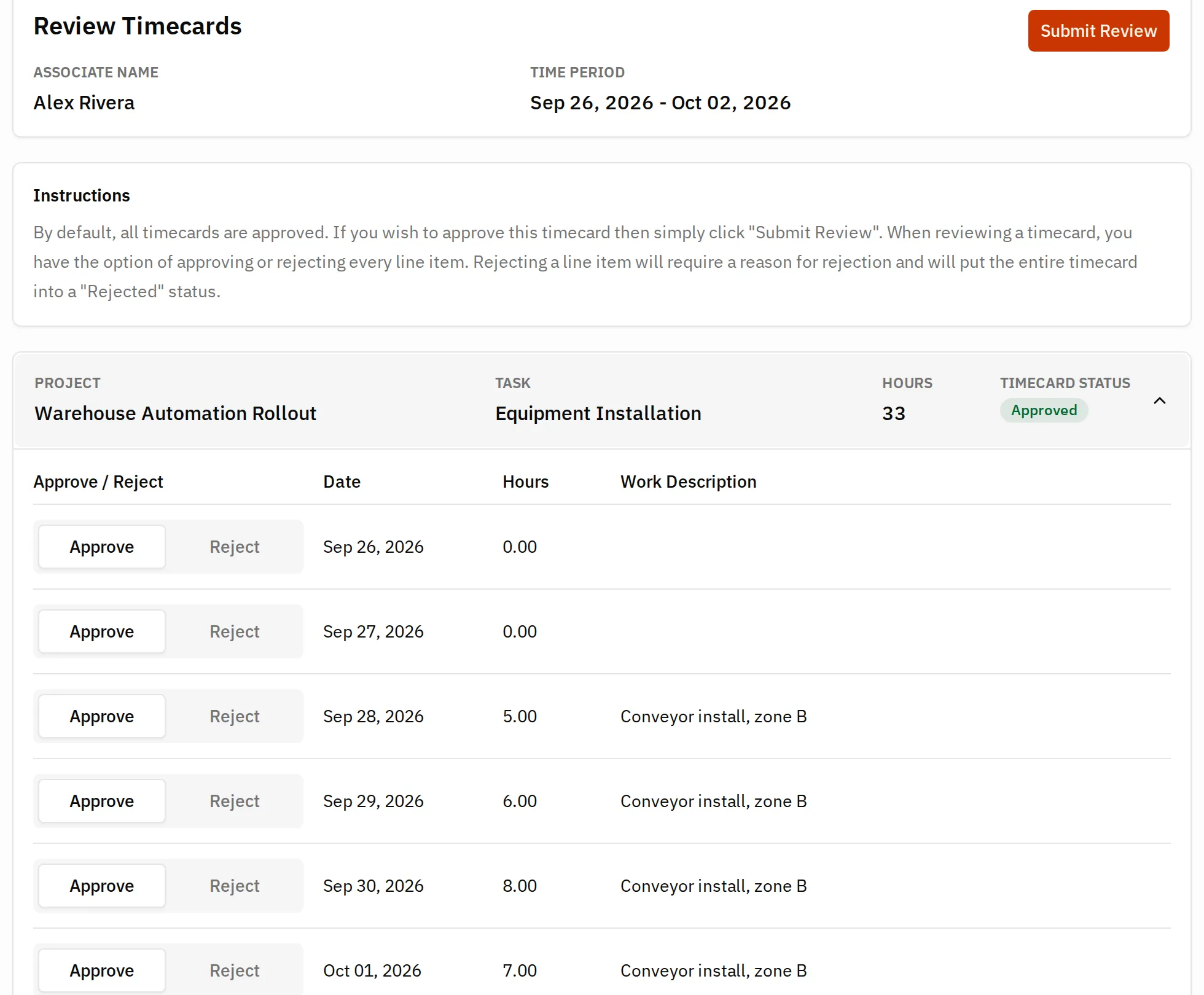
Section titled “Approval Link”Contacts with Copy With Link receive a secure link to the Review Timecards page. They do not need a Crewsum account.
- Crewsum creates one link per recipient email address per submission. If several contacts share an email address, one link covers all of their projects.
- A link only shows the timecards for the project/task pairs the recipient can review.
- A link is valid for 10 days.
- After a timecard is reviewed, it no longer appears on the link.
-
Open the link from the email. The page shows the associate, the time period, and each timecard.
-
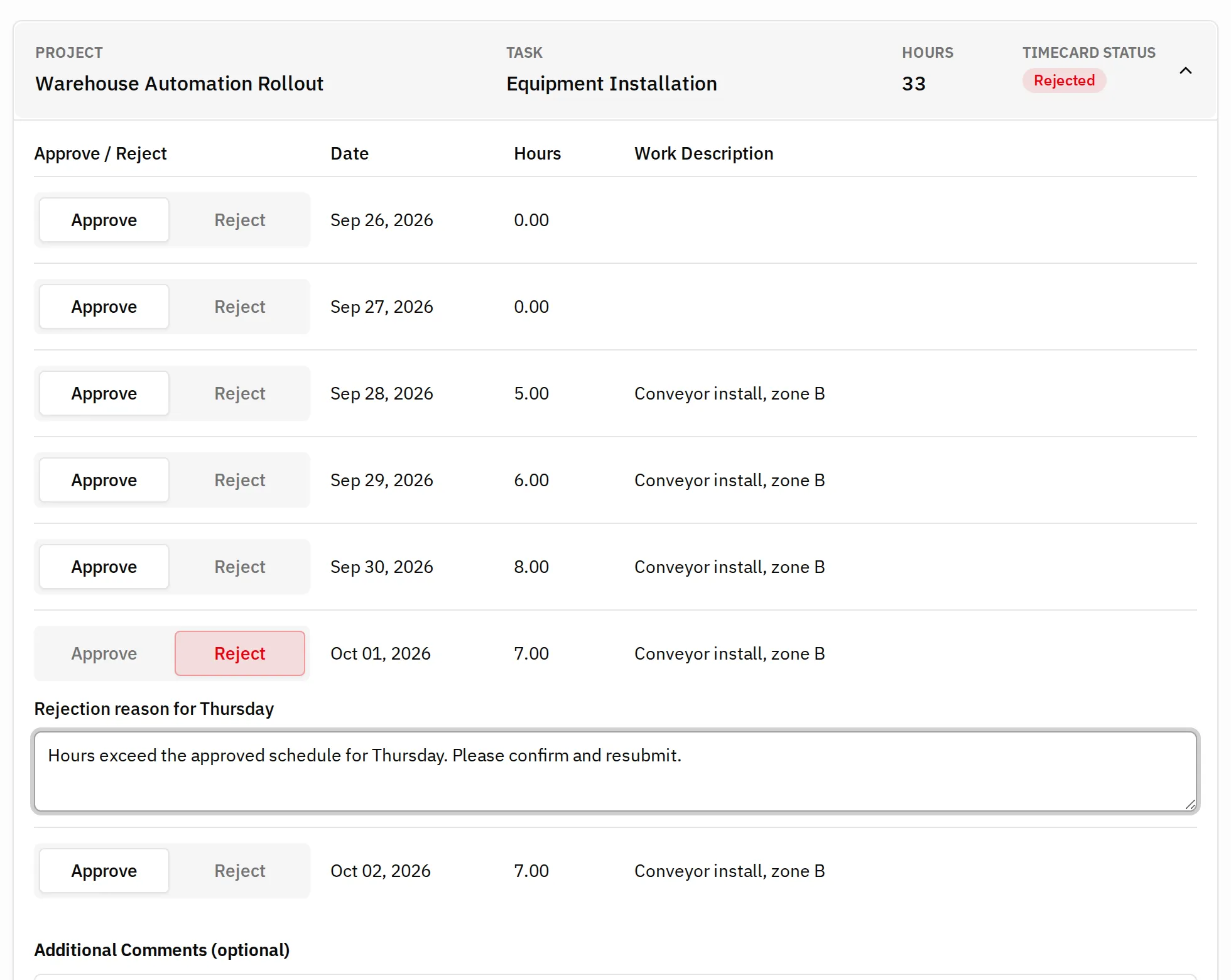
Every day is approved by default. To reject a day, select Reject and enter the rejection reason. The timecard status changes to Rejected.
-
Optionally, add Additional Comments (optional).
-
Select Submit Review. A confirmation page tells you that you can close the window.
Admin Review
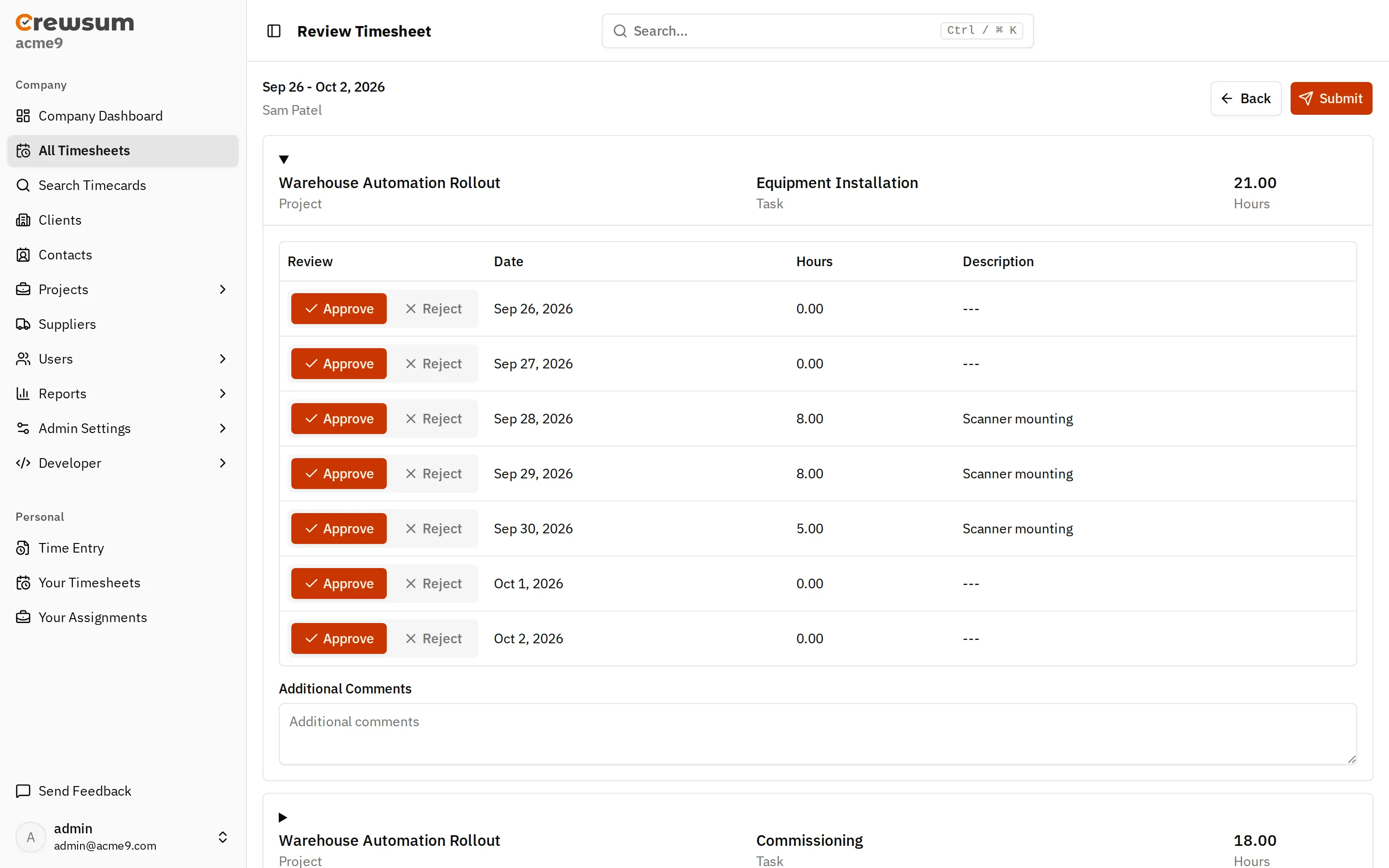
Section titled “Admin Review”Administrators can review any pending timesheet.
- Go to All Timesheets and open the timesheet.
- In the timesheet actions menu, select Review Timesheet.
- Choose Approve or Reject for each day, and enter a reason for each rejected day. Add Additional Comments if needed.
- Open the Submit menu and choose:
- Submit and Send Emails to save the review and send review notification emails.
- Just Submit to save the review without sending emails.
Resend Approval Emails
Section titled “Resend Approval Emails”While a timesheet has pending timecards, administrators can select Resend Approval Emails in the timesheet actions menu. Crewsum sends new approval emails to the project contacts only. The user, the internal copy address, and supplier contacts do not receive them again.
Internal Contact Review
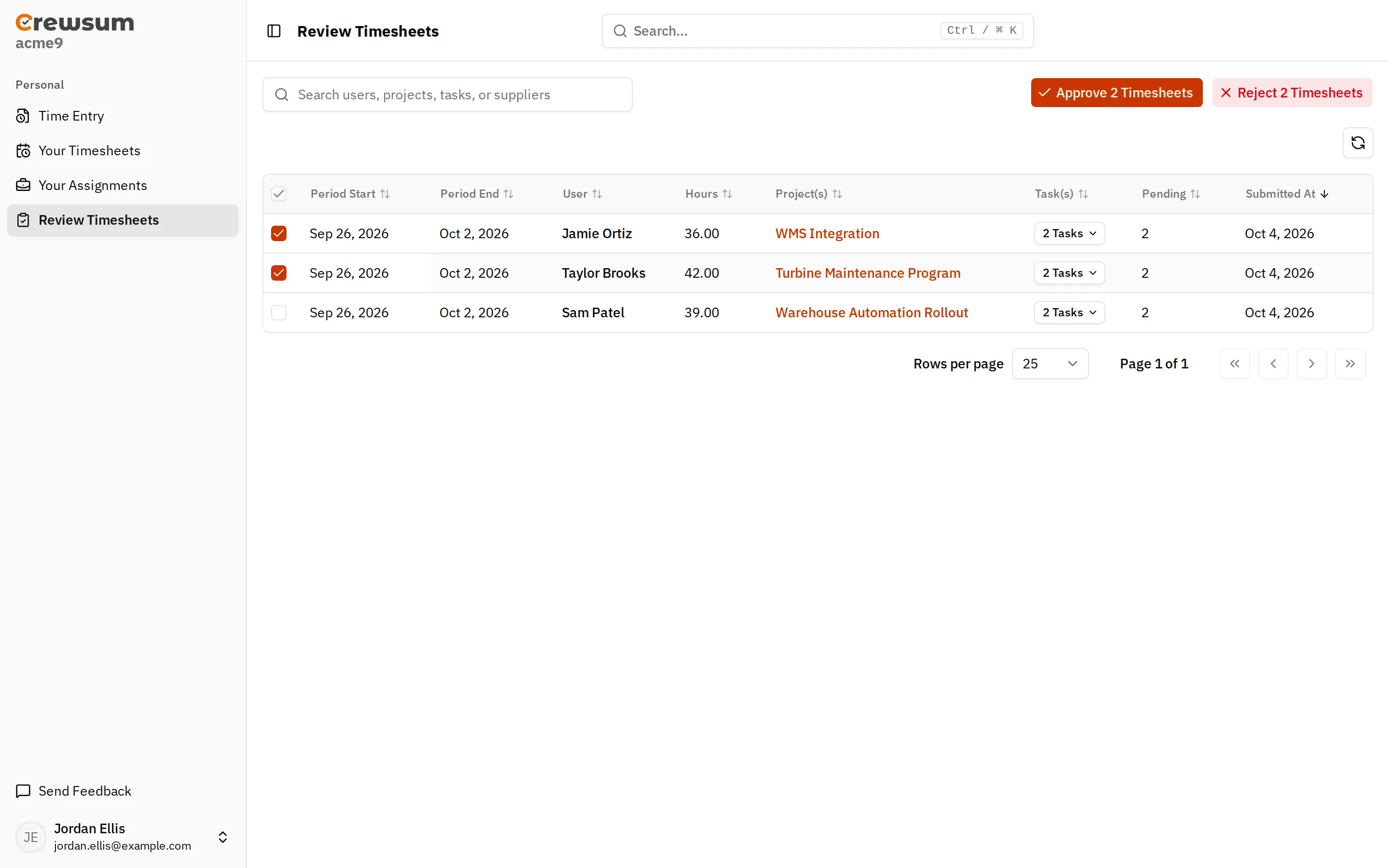
Section titled “Internal Contact Review”An internal contact is a contact linked to a Crewsum user. When that contact has an association with an active project, the user sees Review Timesheets in the app, whatever their role.
- The page lists pending timesheets for the projects the contact is associated with.
- It shows these timesheets for every association, including Copy Only and None.
- Select one timesheet to review it day by day, then select Submit Review.
- Select several timesheets to approve or reject them in bulk with Approve n Timesheets or Reject n Timesheets. Bulk rejection asks for one Reason.
API Review
Section titled “API Review”Integrations can review time with the Review Timesheet endpoint. The API key needs the timesheets:review scope. Set sendEmails to send review emails.
Adding a Reviewer to Pending Time
Section titled “Adding a Reviewer to Pending Time”When you add the first Copy With Link association to a project that already has pending timecards, Crewsum asks whether to send approval emails for that pending time to the new contact. See Associations.
Related
Section titled “Related”- Concepts: Timecards, Timesheets, Associations, Contacts
- API: Review Timesheet, Timesheets endpoints
- Webhook events:
timecards.reviewed