

Associations
An association links one contact to one project. It sets the contact’s role on the project and which emails the contact receives. In the API and webhooks, associations are also called project-contact associations.
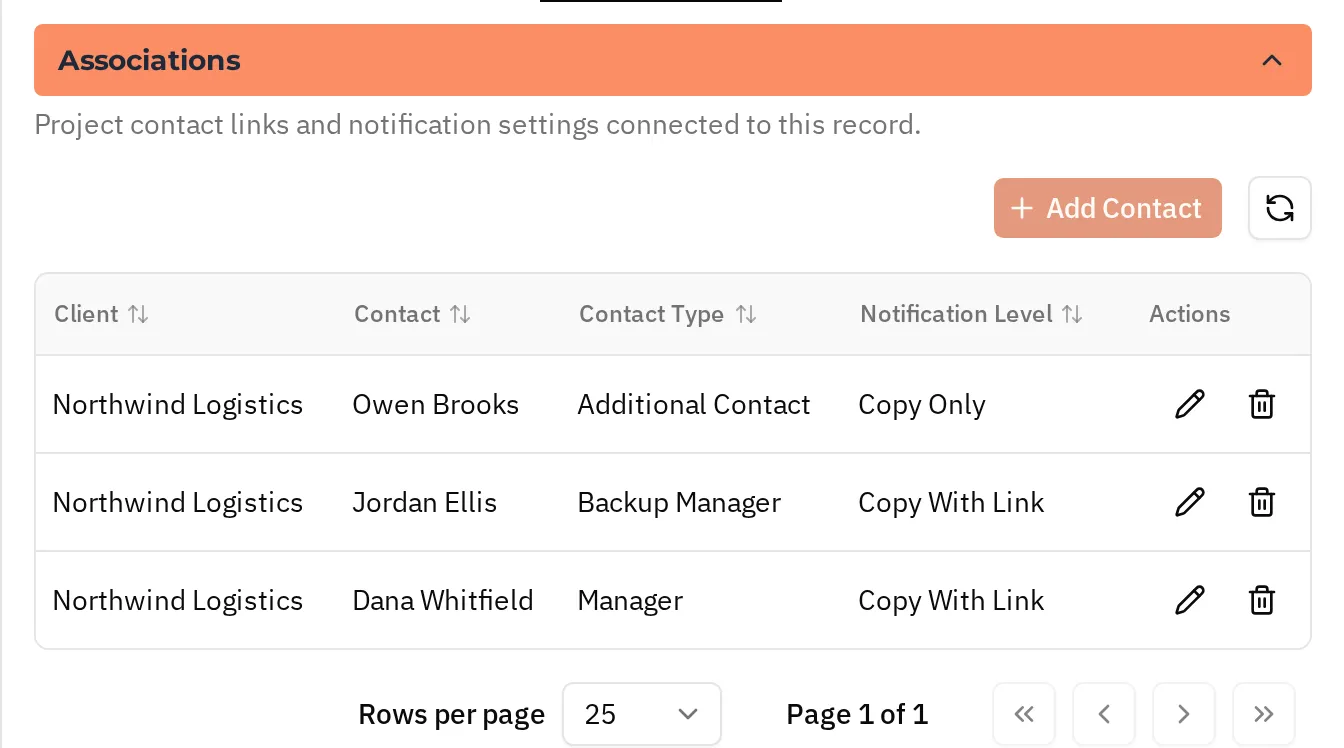
To manage associations in the app, open a project, go to the Related Records tab, and use the Associations section. Select Add Contact to add one. A user who is an internal contact also has an Associations tab.
Contact Type
Section titled “Contact Type”The contact type describes the contact’s role on the project. It does not change review behavior.
| UI label | API value |
|---|---|
| Manager | MANAGER |
| Backup Manager | BACKUP_MANAGER |
| Additional Contact | ADDITIONAL_CONTACT |
The Managers-Projects Assignments report lists associations by contact and by project.
Notification Level
Section titled “Notification Level”The notification level decides which submission emails the contact receives.
| UI label | API value | What the contact receives |
|---|---|---|
| None | NONE | No timesheet emails. |
| Copy Only | COPY_ONLY | Informational copies, with no approval link. |
| Copy With Link | COPY_WITH_LINK | Emails with a secure approval link to review the project’s timecards. |
Outstanding Timecards
Section titled “Outstanding Timecards”A new association can affect time that is already pending, not only future submissions. When you add a Copy With Link association:
- Crewsum checks whether the project already has a Copy With Link association.
- If it does not, Crewsum checks whether the project has pending timecards.
- If it does, the app shows an Outstanding Timecards dialog that asks whether to send approval emails for that pending time. Through the API, the request returns
409until you say how to handle them. - If you choose to send, the new contact receives approval emails for the pending timecards.
Deletion
Section titled “Deletion”Deleting a contact or a project also deletes its associations.
Related
Section titled “Related”- Concepts: Contacts, Projects, Reviewing Time
- API: Associations endpoints
- Webhook events:
associations.created,associations.updated,associations.removed