

User Groups
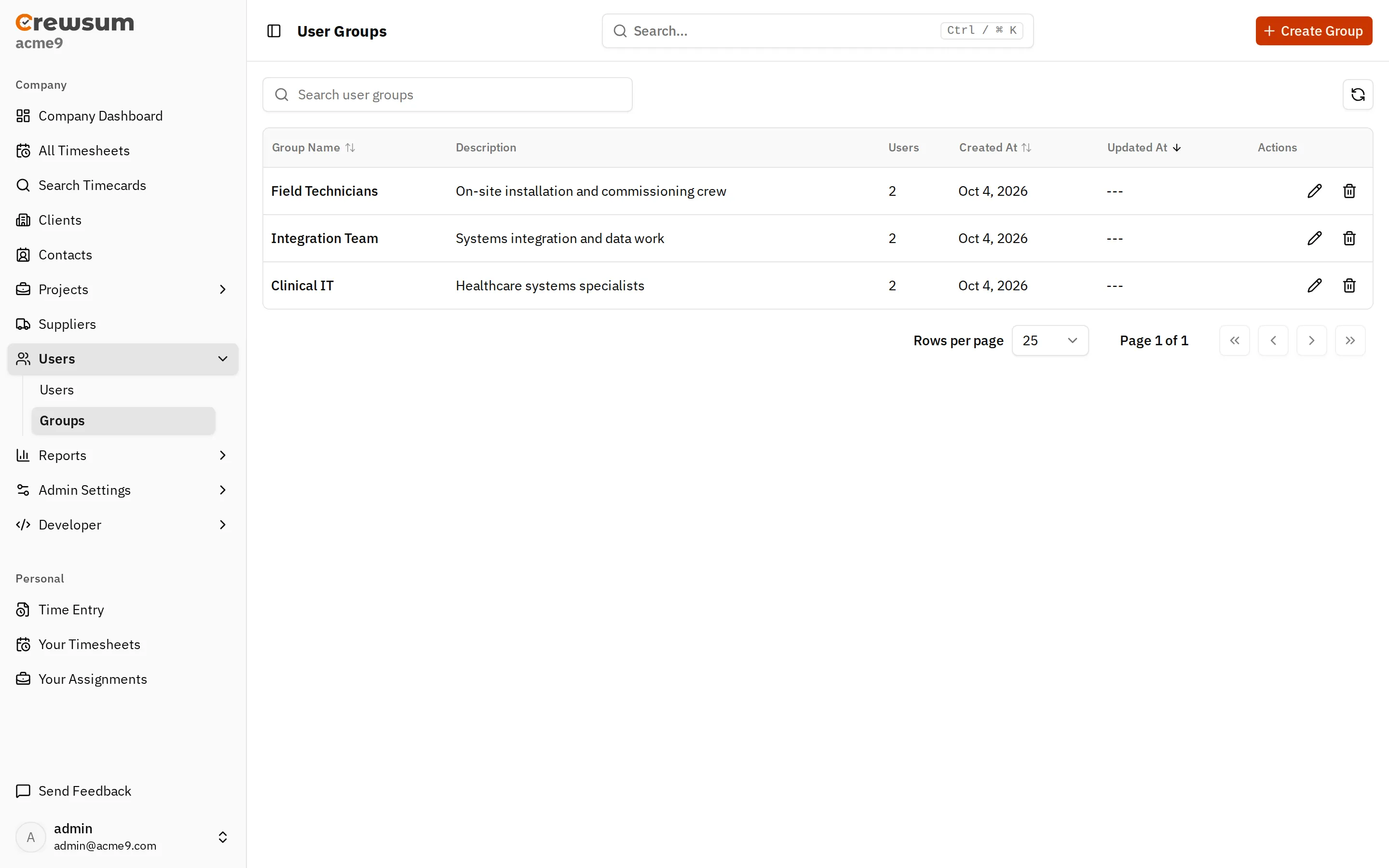
A user group is a named set of users. Use groups to organize users, such as a field crew or an integration team, and to assign projects and tasks to all of them at once.
In the app, go to Users > Groups. The page is titled User Groups.
What a Group Has
Section titled “What a Group Has”- a name (required) and a description
- members. A user can belong to many groups, and a group can have many users.
- project and task assignments that apply to every member
Group Assignments
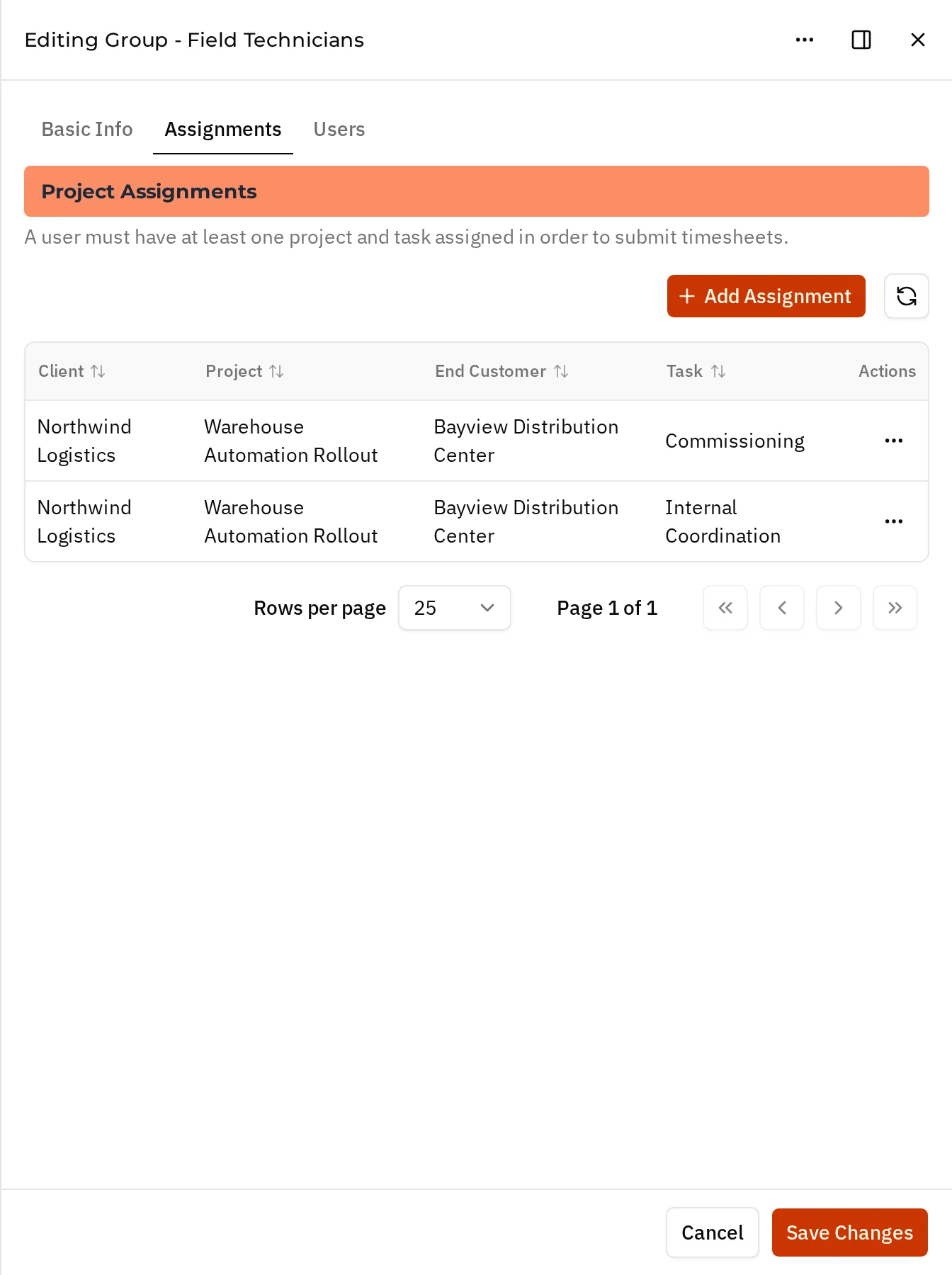
Section titled “Group Assignments”Projects and tasks assigned to a group apply to every member of the group, in addition to each member’s direct assignments. Members can log time to them like any other assignment.
Creating a Group
Section titled “Creating a Group”- Go to Users > Groups and select Create Group.
- On the Basic Info tab, enter a name and an optional description.
- On the Assignments tab, select Add Assignment to add projects and tasks.
- On the Users tab, select Add User to add members.
- Save the group.
You can also add a user to groups from the Groups tab of the user editor.
Deleting a Group
Section titled “Deleting a Group”Deleting a group removes its memberships and cannot be undone. The users themselves are not deleted.
Related
Section titled “Related”- Concepts: Users, Assignments, Roles and Permissions
- API: User Groups endpoints, including Set User Group Users
- Webhook events: user groups have no webhook events. Membership changes made while creating or updating a user are part of
users.createdandusers.updated.